
Can You Trust This Page?
Look at the address bar at the top of this page. This page is on blog.bham.ac.uk. This tells you that it is part of the official bham.ac.uk domain owned by the University of Birmingham.
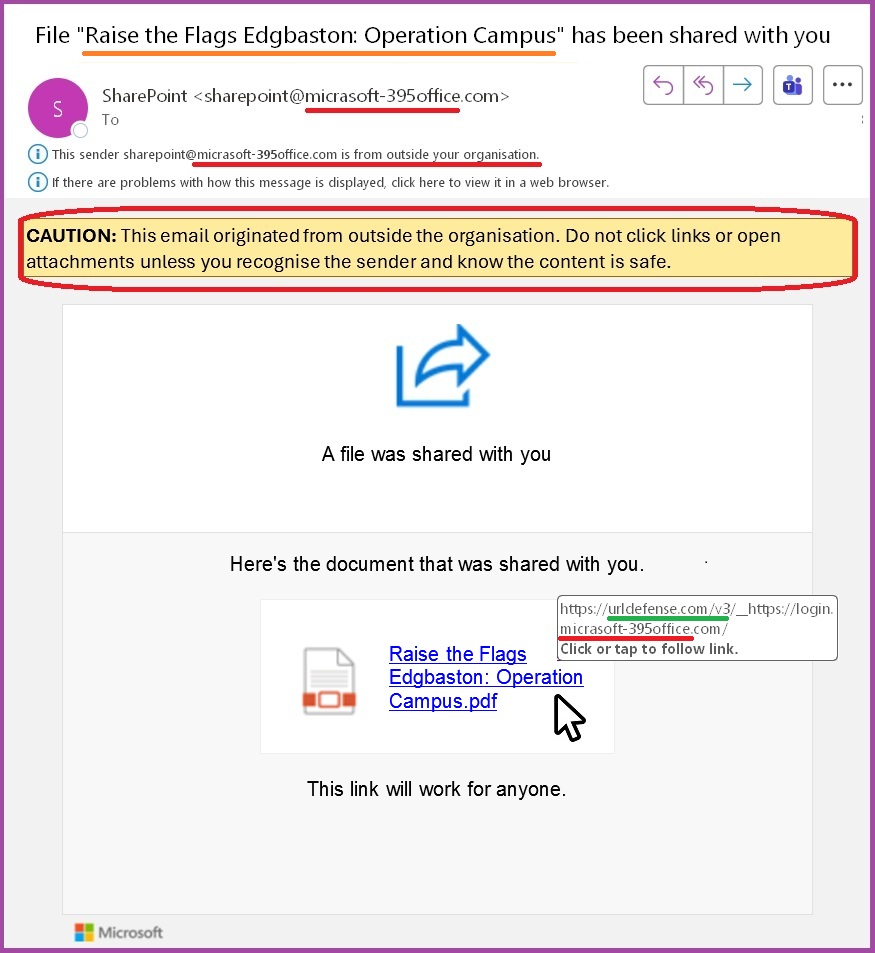
If you came here to verify whether a suspicious email was part of a phishing simulation, then check that the image below matches the email you received.
What we did
On Tuesday 25 November IT Security sent a simulated phishing email to selected staff. It appeared to be:
- From: sharepoint@micrasoft-395office.com
- Subject: File “Raise the Flags Edgbaston: Operation Campus” has been shared with you
The email pretended to be a SharePoint link to a shared PDF document titled
Raise the Flags Edgbaston: Operation Campus.pdf
Clicking the link led to a login screen resembling the usual University sign-in page.
Important: No credentials were collected or stored. Anyone who entered details was redirected to a page confirming this was a safe simulation.
Why we did this
This exercise is about awareness, not blame
- No one is in any trouble because of this.
- No one will be named or shamed.
- Line managers are not told of about any individual’s actions or inactions.
Phishing emails are the top method criminals use to steal passwords, break into systems, steal identities and commit fraud. This simulation is based on real-life threats intercepted by our security systems. These real-world threats often use attention-grabbing “hooks” that tie into current news, trending topics, season events or workplace-related items such as HR, payroll or IT notices.
Think of it as a fire drill for your Inbox – unexpected, harmless and designed to prepare you for the real thing. This supplements theoretical training. We don’t wait for a real fire to practice escaping – so why wait for a real scam to practice spotting one? Most people accept that a little inconvenience and brief alarm are a small price to pay for stronger security in today’s risky cyber world.
An image of the email – with the suspicious parts marked in red and orange
What Made the Email Suspicious?
- It comes from outside the University, as you would expect if it was from Microsoft SharePoint,
BUT- the Sender email address is micrasoft-395office.com not no-reply@sharepointonline.com for emails from SharePoint.
- Emails from Microsoft Sharepoint have a warning message with a pale blue background not a yellow background.
- Most University messages to all staff would usually have the short message within the email or have a link to a web page with more detailed relevant information. It would be odd for an email directed to many staff to link to a .pdf document on SharePoint.
- This email does not have many of the tell-tale signs of spam/phishing we may have relied on in the past. This is because attacks are become more sophisticated:
- Correct spelling, grammar, and logos are now very easy to fake by copying websites and using AI tools to polish grammar.
- Genuine logos and backgrounds are easily copied from the real sites.
- The message aimed to create an emotional response, urgency and anxiety (shown underlined in orange). In this case, for some people, rage, clickbait – a common tactic used by scammers to stop you from Pause and Think before you Click.
- If you reached the sign-in screen, the URL at the top says micrasoft-395office.com which is fake.
NB: scammers often copy real logos and backgrounds from genuine websites to fool you – so always look carefully at the address bar at the top of a sign-in screen.
- It asks for a username and password. Any email which links to a place where you are asked to give your username and password, should be treated with caution – you should pause, think and ask yourself:
Key Lessons
- Pause and Think Before You Click.
- especially the email makes you feel angry, anxious or moved – you are being rushed into acting.
- Be cautious if an email asks for your username and password. Avoid using a direct email link to reset your password, go the webpage using a browser and login that way.
- Always check the URL of sign-in pages.
- Hover over links (or long-press on mobile) to reveal the full destination address.
About URLDefense
Links in emails may begin with urldefense.com/v3/ — part of our security system that checks external websites for threats.
Even with this protection, you should still inspect the final destination URL to ensure it’s legitimate.
What You Can Do
- Ask yourself:
- Was I expecting this email?
- Do I know the sender?
- Does it “seem right”?
- Is the sign-in screen URL correct?
- Does the email seem to intend to manipulate feelings like urgency, fear, anger?
Who is the email really from? Whose page are you actually signing into?
Does the sending address and URL at the top of the sign-in screen match the alleged Sender?
In this case, the Sender’s email domain address is
@micrasoft-395office.com
not
@sharepointonline.com @microsoft.com or office.com or bham.ac.uk or login.microsoft.com
as you might expect if were really from Microsoft or the University of Birmingham.
Where does the link take you?
You can reveal the full address:
- on a computer, by hovering the mouse pointer over the link (without clicking on it!)
- on a phone/tablet by a long press holding down on the link.
In this example, raise the Flags Edgbaston: Operation Campus.pdf links to micrasoft-395office.com which is not a Microsoft or University of Birmingham website.
- If you receive a suspicious email:
- The previous advice was to ignore or delete suspicious emails, but with new technology we now ask that you:
- Use the Report button in Outlook it’s faster and helps protect others.
- If enough people Report an email, then all copies can be automatically quarantined for human review. It also helps to train our system.
- If a link sems suspicious then don’t click on it! – even “carefully” to enter dummy details, out of curiosity or “just to be sure”. In a real attack, there is a risk of a “zero-day” “drive by download” which your browser might not protect you against. You are playing with fire.
Further quick learning (5-10 mins)
Fraudsters are very devious in using addresses which look similar to genuine ones. This page, from CalTech, shows you how to read URLs (web addresses) correctly, to help you to avoid some of the dirty tricks used https://www.imss.caltech.edu/services/security/recommendations/how-to-read-urls
You can test your knowledge by identifying which of 10 emails are legitimate or phishing in this quiz https://www.phishingbox.com/phishing-iq-test/quiz.php
Questions or Comments?
If you work or study at the University of Birmingham and have questions or comments about this phishing campaign, then contact: itsecurity @ contacts.bham.ac.uk